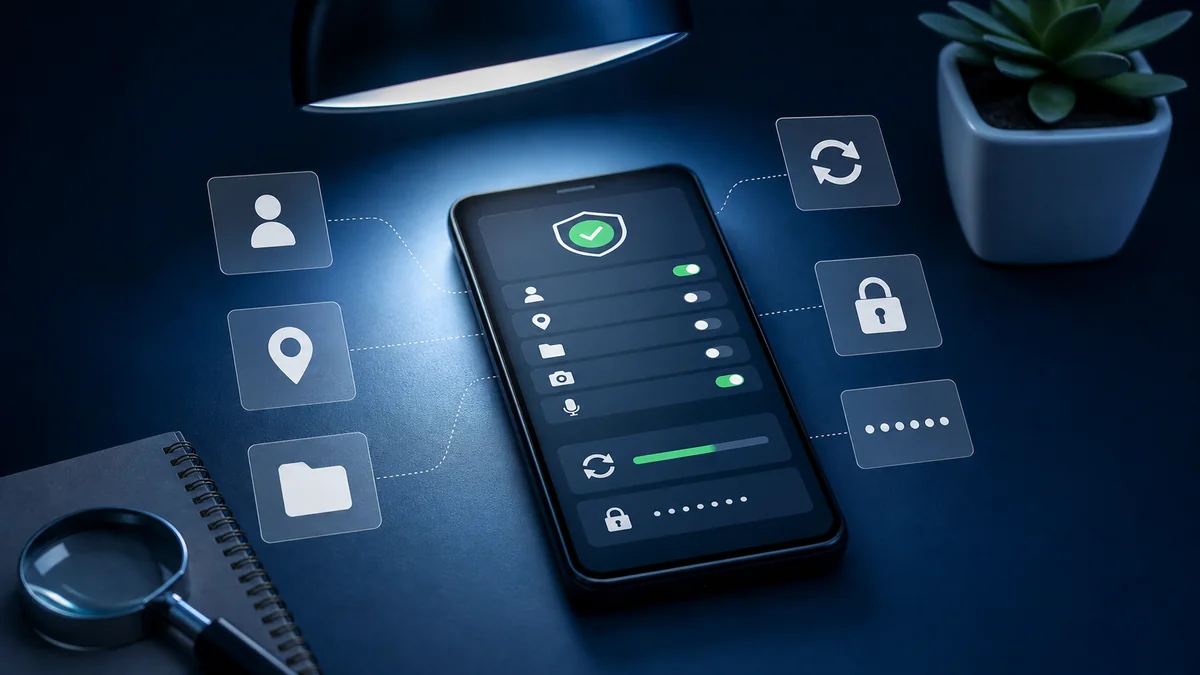
Most people check phone safety only after something feels wrong: a strange notification, faster battery drain, unexpected heat, or a link they regret opening. The problem is that Android risk is not always dramatic. It can also be quiet: old apps, loose permissions, weak lock screen privacy, unknown APK sources, and accounts that have not been reviewed in months.
A better habit is to review the basics before there is a problem. You do not need to be a security expert. You just need to know where everyday risk usually hides and how to reduce it without turning your phone into a stressful project.
Updates Are the First Check
Android system updates and app updates often include security fixes. If your phone has not been updated for a long time, it may be missing important patches. Start with system settings, then open Google Play and check pending app updates. This is not exciting advice, but it is one of the most useful habits.
If your phone is older and no longer receives major Android updates, be more careful with app sources and sensitive accounts. Keeping core apps updated and avoiding unknown APK files becomes even more important.
Permissions Tell You a Lot
Permissions are easy to approve and easy to forget. Location, camera, microphone, contacts, files, and SMS access should match what the app actually does. A map app needs location. A video call app needs camera and microphone. A simple wallpaper app probably does not need access to your contacts.
- Limit location access to “while using” when possible.
- Remove camera and microphone access from apps that do not need them.
- Delete apps you have not used in months.
- Check file and photo access, especially for older apps.
Battery Drain Is a Clue, Not a Verdict
A warm phone or fast battery drain does not automatically mean malware. Poor signal, background backups, GPS, a buggy app update, or a browser tab can cause the same symptoms. Check battery usage in Android settings before assuming the worst. If a familiar app is using too much power, update it or limit background activity. If an unknown app appears, remove it and review where it came from.
Unknown App Sources Should Not Stay Open
Installing APK files outside Google Play can be useful for advanced users, but it also increases risk if the source is not fully trusted. For most people, unknown app installation should stay disabled. If you enable it for a specific reason, turn it off again after you are done.
Where What’s My Phone Risk Fits
What’s My Phone Risk fits best as a risk-awareness tool, not as a magic shield. It can help users think about phone safety in a more structured way and pay attention to areas they might normally ignore. That is a realistic and useful role.
No honest app should be treated as a complete guarantee. Phone safety depends on updates, app sources, permissions, account protection, and user habits. A risk tool can support that process, but it should not replace your own judgment.
A Monthly Phone Safety Routine
- Update Android and installed apps.
- Remove unused apps.
- Review sensitive permissions.
- Clean browser notification permissions.
- Check lock screen privacy.
- Use two-factor authentication for important accounts.
The goal is not to become obsessed with risk. The goal is to stop ignoring small issues until they become confusing. A short monthly review is enough for most users to stay more aware of their phone’s safety.
How to Read Phone Risk Without Panic
A safe Android phone is not a phone with zero risk. It is a phone where the most important settings are understood, updated and reviewed regularly. App permissions, lock screen protection, account recovery options, update status and notification privacy all matter. Looking at these areas gives you a realistic picture without assuming that every warning means something is wrong.
Start with the basics. Check whether Android security updates are recent, whether the screen lock is strong, and whether your Google account recovery details are current. Then review apps that can access location, camera, microphone, contacts and files. If an app no longer needs a permission, remove that permission instead of deleting everything in a rush. Calm, small changes are easier to track.
Practical Review Checklist
Review installed apps and remove the ones you do not recognize or no longer use. Keep app updates enabled for trusted apps, but still read permission changes when an update asks for something new. Avoid installing APK files from random websites, especially when they promise paid features for free or ask you to disable security protections.
If you want a second opinion, a phone risk checklist tool such as What’s My Phone Risk can help you think through permissions, settings and habits in a structured way. It should be treated as a guide for awareness, not as a guarantee of complete protection or a replacement for official Android security features.