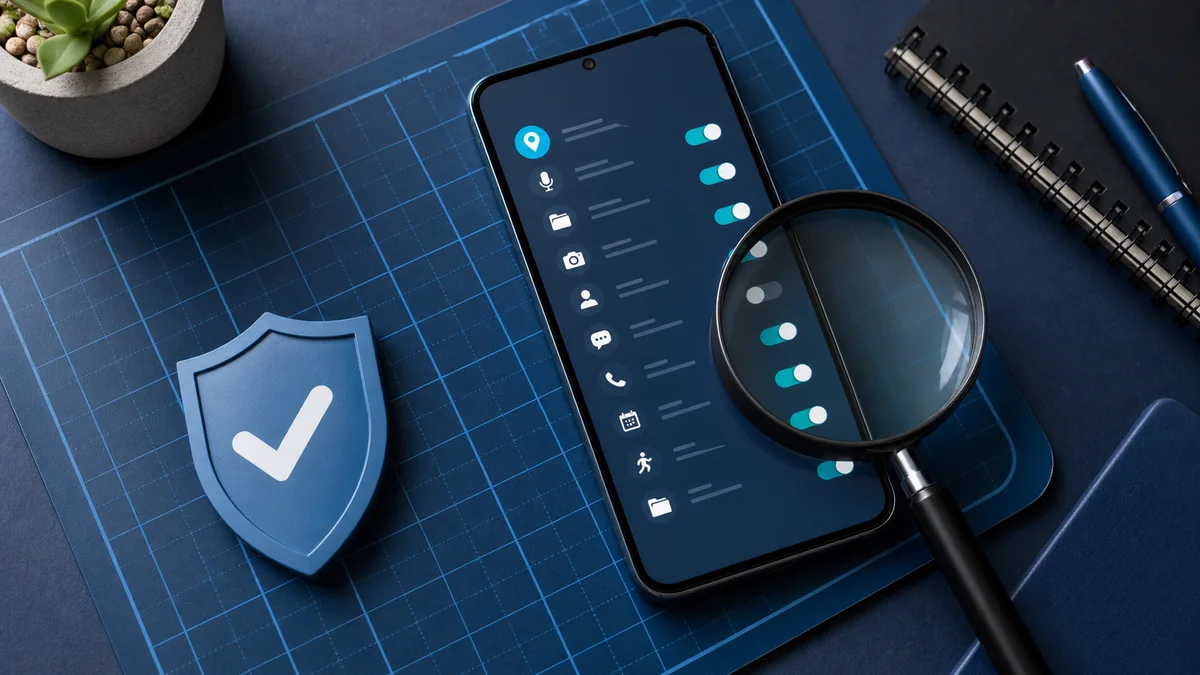
Android app permissions are easy to approve and easy to forget. A small prompt appears, the app says it needs access, and many users tap Allow because they want to continue. Some permissions are perfectly reasonable. A navigation app needs location, a camera app needs the camera, and a meeting app needs the microphone. The privacy question is whether the permission matches the app’s real purpose, how broad the access is, and whether it still needs that access months later.
Why permissions deserve attention
A phone contains far more than apps. It holds photos, messages, bank alerts, work email, two-factor codes, family contacts, location history, health app notifications, and private notes. When an app has broad access, it may be able to reach data that is not necessary for its main feature. This does not always mean the app is malicious. Sometimes developers ask for broad permissions for convenience. Sometimes an old feature was removed but the permission stayed. Sometimes advertising or analytics components push for more data than the user expects.
Android has improved permission controls over the years. Users can often choose “Allow only while using the app,” “Ask every time,” or “Don’t allow.” Newer versions also reset permissions for apps that have not been used for a while. These changes help, but they do not replace a quick manual review. If you have used the same phone for a year or more, there is a good chance some old app still has access it no longer needs.
Location access should be narrow
Location permission makes sense for maps, ride services, delivery apps, weather, and some safety features. It is harder to justify for a flashlight, wallpaper app, calculator, casual game, or simple notes app. When location is needed, prefer access only while using the app. Background location should be reserved for apps where the benefit is clear, such as navigation, family safety features you intentionally use, or device tracking tools you trust.
Approximate location is also useful. A weather app does not usually need your exact address. City-level location is often enough. Precise location is more appropriate for turn-by-turn navigation or delivery. Choosing approximate location when possible reduces the amount of sensitive context you share without breaking the app.
Camera and microphone need regular review
Camera and microphone access are necessary for video calls, voice notes, camera apps, QR scanning, and social apps with recording features. They should still be reviewed periodically. Android shows privacy indicators when the camera or microphone is active. If you see the indicator at an unexpected time, open the privacy dashboard or quick settings to check which app used it.
Some apps only need camera or microphone access for a specific moment. You can grant permission when you use the feature and remove it later. This is especially sensible for apps you rarely open. There is little reason for an old shopping, event, or utility app to keep microphone access if you never use a voice feature inside it.
Contacts and files can expose more than expected
Contacts permission may reveal names, phone numbers, email addresses, and relationship clues about other people, not just you. Messaging and calling apps may need it. A random game or shopping app usually does not. If an app asks for contacts to “find friends,” decide whether you actually plan to use that feature. If not, deny the permission.
File and photo access also deserves care. Newer Android versions can let you share selected photos instead of the entire media library. Use that option when it fits. A document scanner may only need the file you are scanning. A profile photo upload does not need permanent access to every image on the device. Smaller permissions are usually better permissions.
Notifications are part of privacy too
Notification permission is often treated as a convenience setting, but it can reveal private information. Lock screen previews may show message snippets, banking alerts, delivery addresses, calendar details, or verification codes. Review notification settings for messaging, banking, email, work, and health apps. You can hide sensitive lock screen content while still allowing the notification itself.
This matters even more when you share screens, work in public places, or leave your phone on a desk. A private message that appears on the lock screen can expose information even if the app itself is secure. Privacy is not only about data collection; it is also about what appears at the wrong moment.
Remove apps you no longer use
Unused apps are easy to ignore. They may still hold permissions, background activity rights, notification access, or old cached data. If you do not use an app, uninstall it. If you are not ready to uninstall it, remove sensitive permissions and restrict background activity where appropriate. Android’s automatic permission reset is helpful, but a manual cleanup is still worth doing.
When reviewing your app list, pay attention to names you do not recognize, duplicate utilities, old games, and apps installed for one-time tasks. Do not panic if you see unfamiliar system apps; phones include many manufacturer and carrier components. Search the app name before removing or disabling anything important.
Be careful with apps outside official stores
Installing APK files can be legitimate for advanced users, but it raises the risk. If the source, update path, and developer are unclear, wait. Avoid cracked, modified, or “premium unlocked” apps. Besides legal and ethical issues, they often request broad permissions and may include unwanted behavior. A free shortcut can become an expensive privacy problem.
Apps from official stores are not automatically perfect, but the source, update history, developer information, and reviews are easier to inspect. Look beyond star ratings. Check recent reviews, the last update date, the developer name, and whether permission requests match the app’s purpose.
A quick Android permission checkup
- Open Android Settings and find Privacy, Security and privacy, or Permission manager.
- Review location, camera, microphone, contacts, files, and notifications.
- Ask whether each permission supports the app’s main purpose.
- Change location to “while using” or approximate where possible.
- Remove camera and microphone access from apps that do not need them.
- Hide sensitive notification content on the lock screen.
- Uninstall apps you no longer use.
Tools focused on phone risk awareness, including What’s My Phone Risk, can be useful reminders to think through these settings. They should not be treated as magic protection or as a replacement for good habits. The real value is prompting users to look at permissions, app behavior, and privacy choices more regularly.
When to act quickly
Do a permission review sooner if your phone suddenly heats up, battery life drops sharply, mobile data use increases, unknown apps appear, or the camera or microphone indicator appears unexpectedly. Start with recently installed apps, then review sensitive permissions. Remove suspicious apps, update trusted apps, and change important passwords from a device you trust if you believe an account may be affected.
Good Android privacy does not require paranoia. It requires matching permissions to real needs, keeping access narrow, removing unused apps, and checking sensitive settings from time to time. A ten-minute review can prevent months of unnecessary exposure.