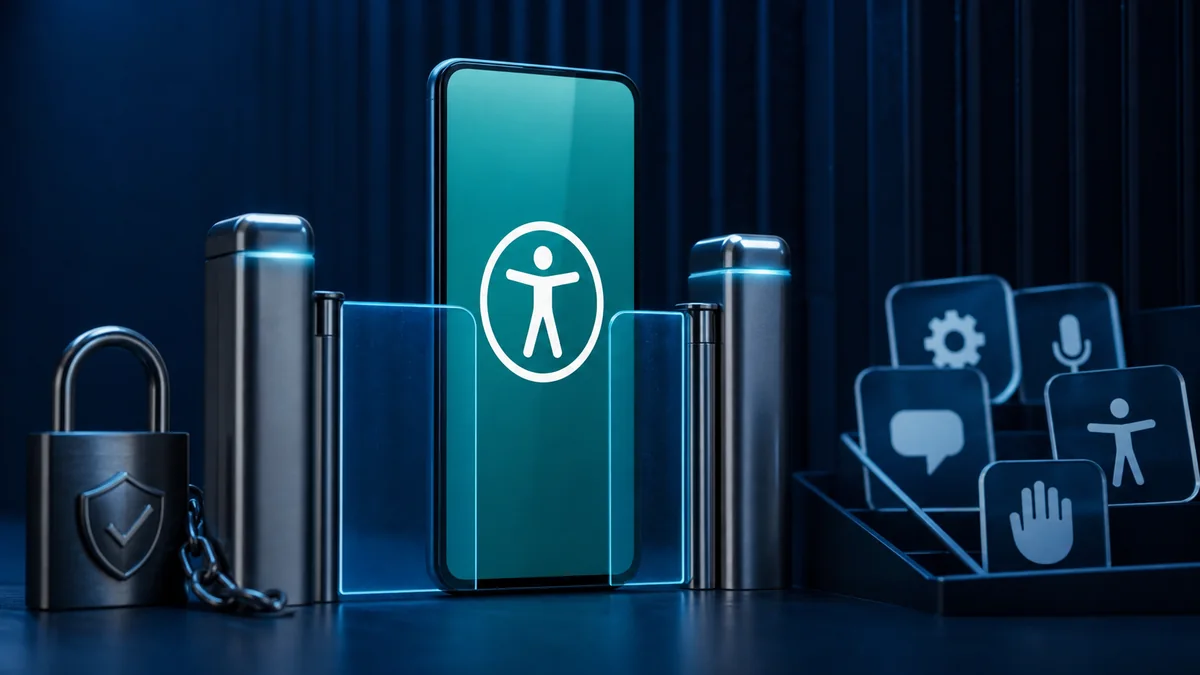
Android accessibility features help people interact with their phones through screen readers, voice control, switch devices, and other essential tools. The same access can also let an app observe what appears on screen or perform actions on the user’s behalf, depending on the service and Android version. That is why an unexpected request to enable an app under Accessibility deserves more attention than an ordinary notification permission.
Why accessibility access is unusually powerful
An enabled accessibility service may be able to read interface text, detect which app is open, follow user actions, and press buttons. Legitimate tools need some of these abilities to describe the screen or automate an action for a person who requires assistance. A malicious or deceptive app can try to misuse the same capabilities to capture information or approve prompts.
The permission does not mean every accessibility app is unsafe. The important question is whether the capability matches the app’s core purpose, whether the developer explains it clearly, and whether you intentionally chose the feature. A calculator, wallpaper pack, or simple flashlight has little reason to request this access.
Recognize suspicious request patterns
Be cautious when an app sends you through several settings screens and tells you to ignore Android’s warning. Scammers often create urgency by claiming the phone is infected, a delivery is waiting, or an account will be closed. A legitimate developer should explain the exact feature that requires access and what stops working if you decline.
Another warning sign is an app installed from a link in a text message, chat, pop-up, or unofficial store. The name and icon may imitate a bank, courier, government service, or security product. Do not grant powerful access merely because the screen looks familiar; return to the organization’s official website or known app-store listing independently.
Check which services are enabled
On many Android phones, open Settings and search for Accessibility, then look for Installed apps, Downloaded apps, or Installed services. Menu names vary by manufacturer. Review enabled services one by one and identify the feature you use. Built-in screen readers or services you deliberately configured should not be disabled casually.
For an unfamiliar item, note the app name before changing anything. Open its app information page to see the developer, installation source, data usage, battery activity, and other permissions. A risk assessment is stronger when several clues point in the same direction rather than when it relies only on an unfamiliar name.
Decide whether the request is justified
Ask three questions: What user-facing feature needs accessibility? Can the feature work with a narrower permission? Did I request this behavior myself? Password managers, automation tools, screen readers, and device-control utilities may have understandable reasons, but even then you should read the developer’s explanation and privacy terms.
If the app works for its main purpose without the service, leave access off. You can often grant it later when you intentionally enable the related feature. Permission prompts are not setup chores to clear as quickly as possible; they are decisions about what the app can observe and control.
What to do with an unknown enabled service
Disconnect from sensitive tasks such as banking while you investigate. Disable the accessibility service if doing so will not interfere with a feature you rely on, then uninstall the suspicious app through Settings. If the controls close immediately or the app prevents removal, restart in Safe Mode using the method documented by your phone manufacturer and try again.
Run Google Play Protect and install pending Android security updates. A reputable mobile security scan can provide another signal, but no scanner offers a guarantee. Avoid downloading several unknown ‘cleaner’ apps, since they may add more permissions and advertising rather than solve the original concern.
Protect accounts after suspected misuse
If you entered passwords, payment details, or one-time codes while a suspicious service was active, use a different trusted device to change the affected credentials. Start with your primary email account because it can reset many other accounts. Review recent sessions, recovery details, and transaction alerts.
Contact the relevant bank or service through its official number if financial information may have been exposed. Explain what happened and when. Keep screenshots, app names, messages, and transaction details, but do not continue interacting with the scammer to collect more evidence.
Reduce future permission surprises
Install apps from trusted sources, check the developer identity, and read recent reviews for reports of changed behavior. An app can be legitimate at first and later add aggressive features, so review powerful permissions after major updates. Remove apps you no longer use rather than leaving old services enabled indefinitely.
Keep a screen lock, automatic updates, and account multi-factor authentication enabled. Do not share your screen with unsolicited callers or install remote-support software at their request. Accessibility misuse is often part of a larger social-engineering sequence, so slowing down the conversation is a meaningful defense.
Use phone-risk checklists as prompts, not guarantees
A structured checklist can help people remember to review accessibility, device administrator apps, notification access, VPNs, installation sources, and account sessions. Tools such as What’s My Phone Risk can be used as a practical awareness prompt when you want a guided review of phone-risk areas. It should not be treated as a virus remover or proof that a device is completely safe.
The useful outcome is understanding why an item deserves attention and choosing the next step. If a checklist raises a concern, confirm it in Android settings and with the app developer’s official information. For serious signs such as unauthorized transactions or persistent device control, seek qualified support rather than relying on a score alone.
Support accessibility without weakening safety
People who depend on accessibility services should not have to choose between usability and security. Prefer well-established tools, keep them updated, and document which services are expected to be enabled. A family member or support professional can help review changes without disabling essential functions.
Before removing an unfamiliar service from someone else’s phone, ask how they use the device. The app may provide reading, hearing, motor, or cognitive support that is not obvious. Verify first, then replace a risky tool with a trusted alternative if necessary. Security decisions work best when they preserve the user’s independence.
Accessibility permission review
- List every enabled downloaded accessibility service.
- Match each service to a feature you intentionally use.
- Check developer identity and installation source.
- Disable and remove unjustified access.
- Change exposed passwords from a trusted device.
- Review permissions again after major app updates.